
Gluteal Amnesia and Back Pain
Your glutes have forgotten how to work. It sounds strange,

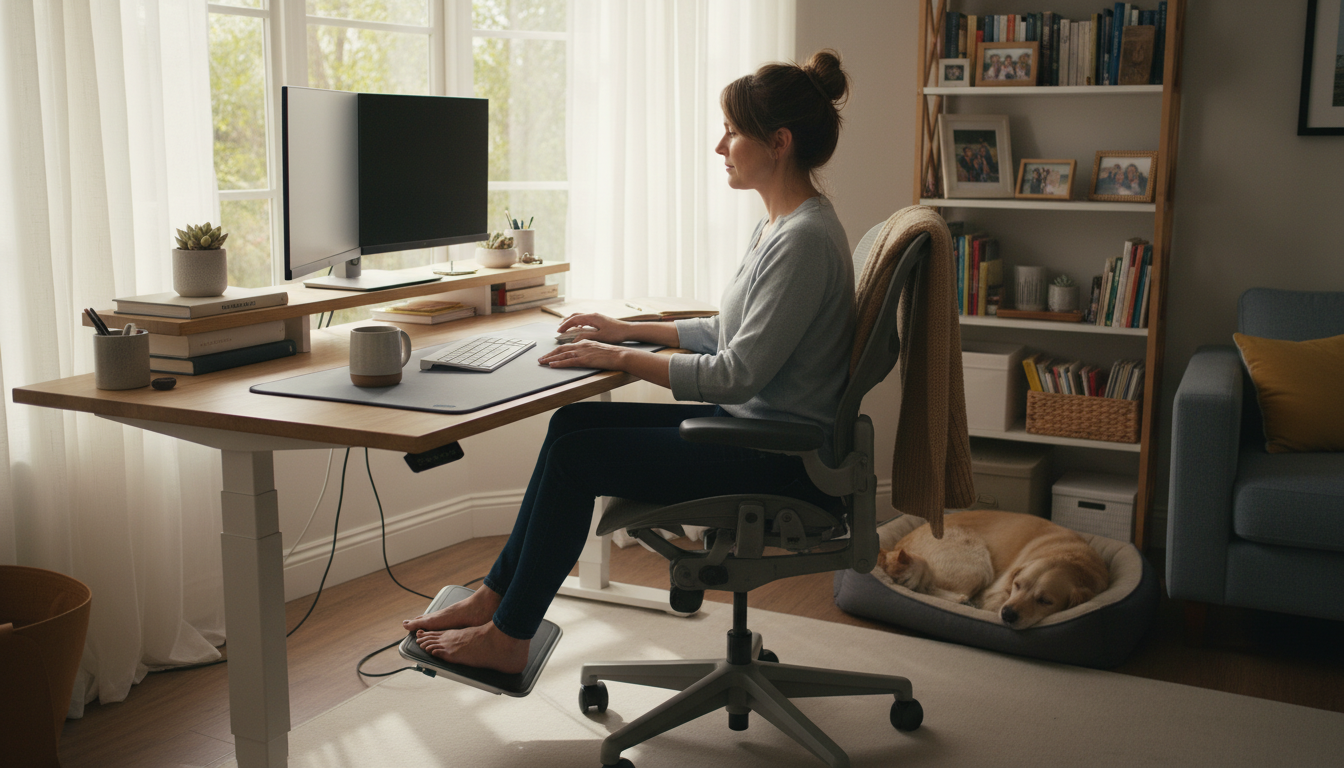
Your couch was never meant to be an office. When remote work became the norm, millions of people traded ergonomic office setups for kitchen tables, couches, and beds. Now they’re paying the price with back pain that didn’t exist before the work-from-home era.
📋 Table of Contents
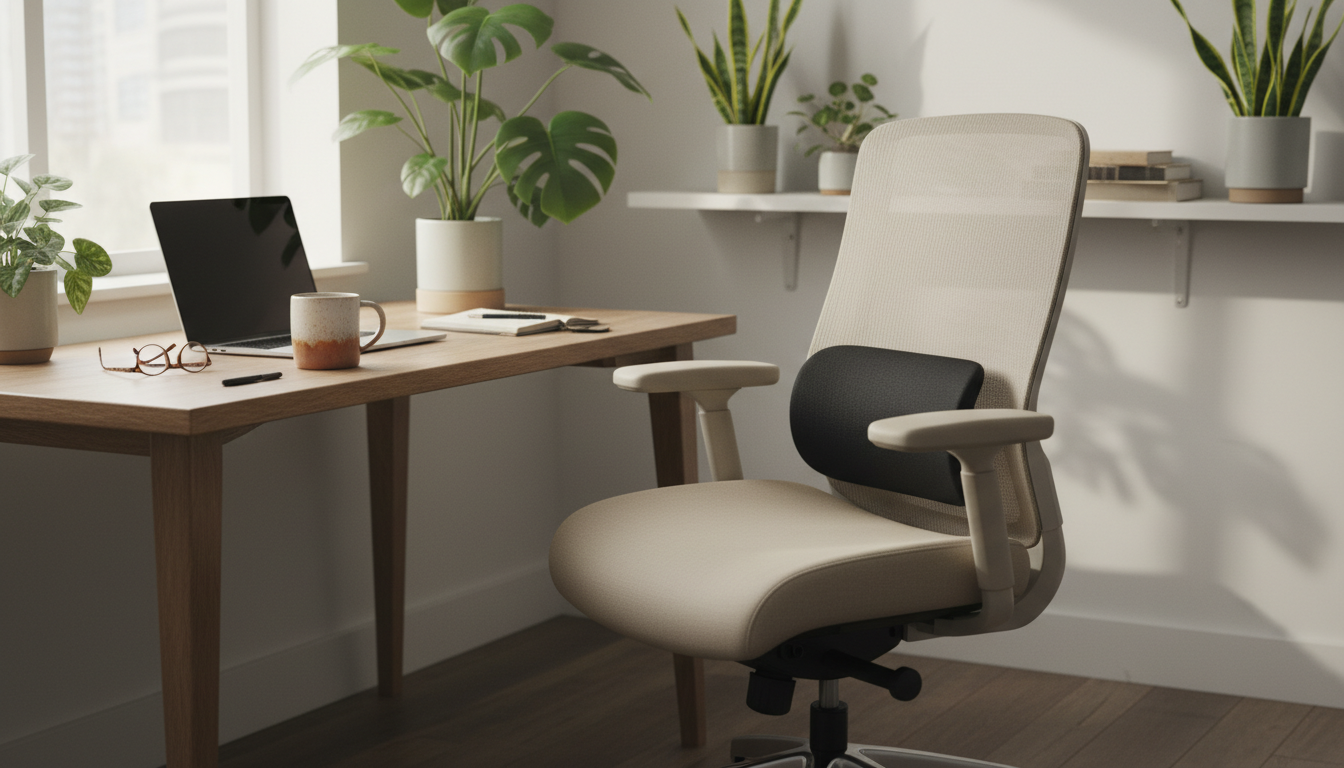
Home office back pain isn’t inevitable—but it requires intentional setup and habits. Without an employer providing ergonomic furniture, the responsibility falls on you to create a workspace that protects your spine.
This guide covers the common mistakes that cause work-from-home back pain and practical solutions that work even in small spaces and tight budgets.
| Traditional Office | Typical Home Setup |
|---|---|
| Ergonomic desk chair | Dining chair or couch |
| Adjustable desk | Kitchen table or coffee table |
| External monitor at eye level | Laptop on flat surface |
| Regular walking (to meetings, lunch) | 10-second commute to desk |
| Structured breaks | Working through lunch |
Many home offices started as temporary setups that became permanent:
While you’re saving on commute costs, you may be paying with your health. A 2021 study found that 41% of remote workers reported new or worsening back pain after transitioning to home work. The money saved on gas often gets spent on physical therapy and pain medication.
Essential improvements with minimal investment:
Solid home office foundation:
Complete ergonomic upgrade:
Professional-grade home office:
The Most Cost-Effective Upgrade
Transform your existing chair into supportive seating for under $40. Our lumbar pillow works with dining chairs, office chairs, and even that couch you shouldn’t be working on.
Budget-Friendly | 30-Day Trial | 2-Year Warranty
Can’t buy a new chair? Optimize what you have:
Laptops are ergonomically terrible—the screen and keyboard are connected:
No dedicated office? Work with what you have:
Replace the natural movement lost by working from home:
Working from home removes natural interruptions:
Combat this with intentional breaks:
When home is office, work never ends:
| Time | Position | Activity |
|---|---|---|
| 9:00-10:30 | Seated with lumbar support | Focused work |
| 10:30-11:00 | Standing | Emails, calls |
| 11:00-12:30 | Seated | Focused work |
| 12:30-1:30 | Away from desk | Lunch, walk |
| 1:30-3:00 | Seated | Meetings, focused work |
| 3:00-3:30 | Standing/walking | Calls, light tasks |
| 3:30-5:00 | Seated | Wrap up work |
No standing desk? Vary your sitting instead:
Before starting work:
Home setups typically lack ergonomic furniture, and you lose the natural movement that comes with office work (walking to meetings, commuting, etc.). Most people also work longer hours from home, blurring work-life boundaries. The combination of poor ergonomics, reduced movement, and increased sitting time creates the perfect conditions for back pain.
Not for extended periods. Couches are designed for relaxation, not work—they have no lumbar support and encourage slouching. Even with a lumbar pillow, the couch promotes poor posture for computer work. If you must use a couch occasionally, limit sessions to 30 minutes and use substantial back support.
At minimum: a chair with lumbar support (add a pillow to any chair), a work surface at proper height, and your screen at eye level. An external keyboard allows you to position a laptop screen correctly. Total cost can be under $50 with a lumbar pillow and book stack for the laptop.
Many employers now cover home office expenses—ask HR about equipment stipends or reimbursement policies. Frame requests around productivity and health: ergonomic setups reduce sick days and improve work quality. Some can use health spending accounts (HSA/FSA) for ergonomic equipment with proper documentation.
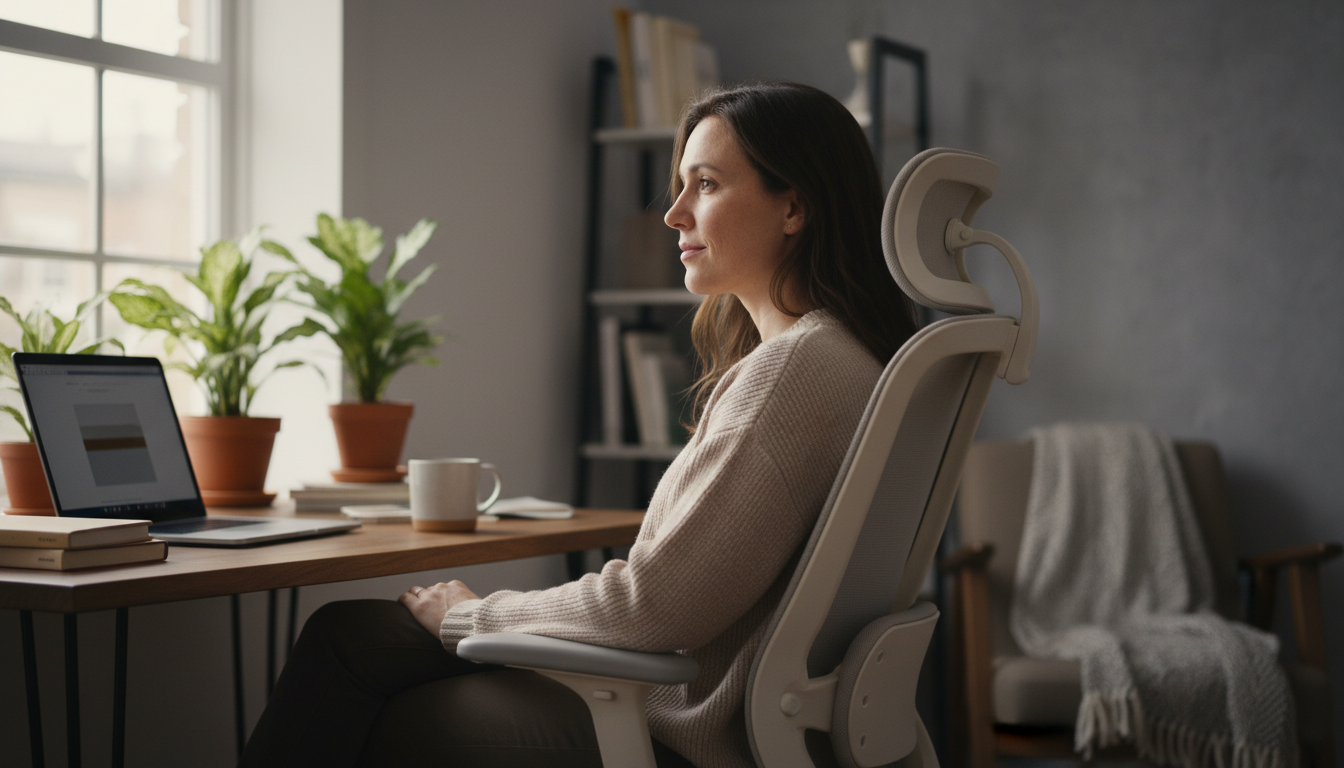
Not necessary, but helpful. The key is position variety, not standing vs. sitting. If you can’t get a standing desk, focus on: taking regular movement breaks, using proper lumbar support while sitting, and varying your sitting position throughout the day. A well-set-up sitting workstation with regular breaks can work well.
Work-from-home back pain is preventable with the right setup and habits:
Your home office is permanent now. It deserves the same ergonomic attention as a traditional office.
Start Your Home Office Upgrade Today
The simplest, most cost-effective improvement you can make: proper lumbar support. Works with any chair in any room.
30-Day Money-Back Guarantee | 2-Year Warranty | Free Shipping
Your glutes have forgotten how to work. It sounds strange,
Your hip flexors are the hidden culprits of desk-job back
Your back is stiff, tight, and angry. And you’ve got

That nagging pain at the base of your spine—right where
Sitting with a herniated disc can feel like torture. Every
Your desk chair is failing you. Even if you paid
That deep ache in your buttock that won’t quit? The

You’ve blamed your chair for years. And you’re probably right—but
Your back is aching right now, isn’t it? That dull
Is your lower back screaming at you by 3 PM?